

You published a 3,000-word post two years ago. It still gets traffic, but readers land, scroll a little, and leave. The content is solid; the experience isn’t. Nobody wants to wade through a wall of text to find the one section they need. Jump links fix that, and adding them to old posts is one of the fastest, highest-return updates you can make.
What Are Jump Links?
Jump links, also called anchor links, page links, or content links, are internal hyperlinks that give a reader in-page navigation: click one and you move straight to a specific section within the same page.
You’ve seen them at the top of Wikipedia articles. You’ve used them on documentation sites. That clickable table of contents that skips you straight to “Installation”? That’s anchor navigation.
A jump link is made up of two parts:
- The anchor ID: a unique tag placed on the destination heading or element
- The link itself: a standard hyperlink pointing to that anchor ID using a # symbol
Together, they let readers skip directly to the content they care about without scrolling past everything else.
Why Add Them to Old Posts?
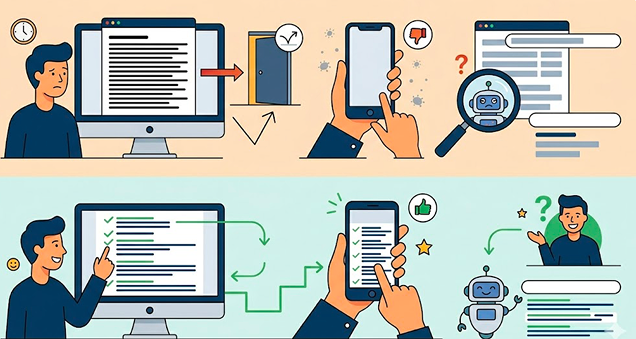
Long-form posts are goldmines, but only if people can navigate them. Without in-page navigation, readers skim, miss what they need, and bounce; mobile users give up after a few swipes; and search engines struggle to surface individual sections. Jump links fix all three without rewriting a word.
The best candidates are posts over 1,500 words with several distinct H2 sections, already ranking on page one or two, and showing a high bounce rate or low time-on-page. A quick scroll through your top performers will surface a few right away.
Adding jump links to your existing long-form content fixes all three of these problems, without rewriting a single word.
Step-by-Step: Adding Jump Links to Existing Content
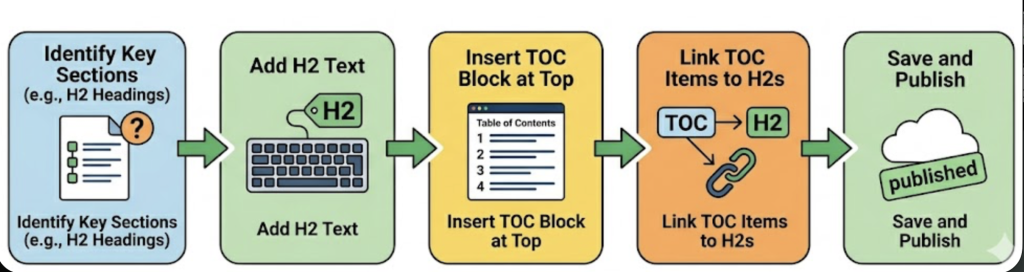
Here’s how to retrofit jump links into any long-form post, regardless of your platform. On a hand-built site, a small React jumplinks component can render the anchor list for you, but most writers won’t need to touch code at all.
Step 1: Audit Your Headings
List every H2 and H3 in the post. These are your jump targets. If the post lacks clear headings, add them first.
Step 2: Create Anchor IDs for Each Heading
For each heading, create a short, lowercase, hyphenated ID. Keep it descriptive and unique.
Example:
- “Why You Should Use Jump Links” → #why-use-jump-links
- “Step-by-Step Setup Guide” → #setup-guide
In WordPress (Block Editor), click on any heading block → open the Advanced panel in the sidebar → paste the anchor ID into the HTML anchor field (without the #).
A few principles separate clean anchor navigation from a frustrating experience:
Keep anchor IDs simple. Short, hyphenated, lowercase. Avoid special characters, leading numbers, or spaces. Bad: #Section-2-(Updated). Good: #setup-guide.
Match the link text to the heading. If the heading says “Common Mistakes,” the jump link should say “Common Mistakes,” not “Click here for errors to avoid.” Consistency makes content links easier to scan.
Place the table of contents after your intro. Write a short two-to-four sentence introduction first, then present the page links. Readers need context before a menu makes sense.
Use jump links for footnote creation too. The same anchor pattern powers accessible footnotes: a reference number links down to the note, and a return link sends readers back to where they left off, so citations stay usable on mobile and with screen readers.
For long posts, scroll spying keeps the current section highlighted in the table of contents as the reader moves down the page, a small touch that makes a long guide feel navigable.
Don’t over-link. Not every heading belongs in the table of contents. Focus on the sections readers are most likely to jump to directly.
Common Mistakes to Avoid
Duplicate anchor IDs. If two headings share an ID, the browser jumps to whichever comes first. Always use unique IDs.
Breaking links during edits. If you rename a heading after publishing, update both the anchor ID and the link pointing to it. One without the other breaks the chain.
Ignoring mobile. Test every jump link on a phone. Fixed headers can leave the target heading hidden behind the nav bar; a small scroll-margin-top offset on your headings fixes it.
Stuffing the table of contents. Fifteen items isn’t help, it’s noise. Curate it.
Do Jump Links Help SEO?
Yes, indirectly, and in a few meaningful ways.
They improve dwell time. When readers can find what they need quickly, they stay longer and engage more. Lower bounce rate and higher time-on-page are signals search engines pay attention to.
They enable sitelinks and featured snippets. Google sometimes pulls individual sections from well-structured pages to display as jump-to links directly in search results. This is more likely when your content uses clear headings and anchor IDs.
They support E-E-A-T. A well-organized post signals professionalism and expertise. Anchor navigation is a small but visible part of that user experience and user experience is part of how Google assesses page quality.
Adding jump links won’t rocket a post from page five to page one. But for posts already close to the top, it can be the small improvement that tips the scales, and it keeps the readers you’ve already earned on the page longer.
The Bottom Line
Your old posts already did the hard work of earning traffic. Don’t let poor navigation waste it. Adding jump links takes under 30 minutes per post, reduces friction for readers, and gives search engines clearer signals about your structure. Start with your five highest-traffic posts, add a table of contents, assign anchor IDs, and publish. Small edit, real results.